What Custom style does
Custom style shows each image’s caption in the gallery grid and leaves its look and behavior entirely to your own CSS. The other caption options come with a fixed position and hover behavior. With Custom style the plugin adds no animation and no inline styles, so your stylesheet decides where the caption sits, how it looks and what happens on hover.
Pick it when the built-in options don’t put the caption where you want it: at the top of the image, centred on it, or with your own hover effect. If you just want the caption under the image, use the Below the image option instead. It needs no CSS.
Turning it on
You can switch it on for all galleries or for a single one:
- All galleries: go to RGG Gallery in the WordPress admin menu, set Captions to Custom style, and save.
- One block gallery: select the Gallery block, open the Captions panel in the block settings sidebar, and set Captions to Custom style.
- One classic gallery: add
captions="custom"to the shortcode, for example[gallery ids="12,13,14" captions="custom"].
The caption text is the image’s caption: the one you type under an image in the Gallery block, or else the caption in the Media Library.
The markup
Each image in the grid is a link with the image and, when the image has a caption, three nested spans:
<div class="rgg-imagegrid captions-custom">
  <a class="rgg-img">
    <img class="rgg-tile-img" src="…" alt="…">
    <span class="rgg-caption-container">
      <span class="rgg-caption">
        <span class="rgg-inner-caption">Your caption</span>
      </span>
    </span>
  </a>
</div>| Class | What it is | Default style |
|---|---|---|
.rgg-imagegrid.captions-custom | The gallery. Start every selector with it, so your CSS only affects Custom style galleries. | – |
.rgg-img | One image tile. Anything outside its box is cut off. | – |
.rgg-caption-container | A layer covering the whole image. | Covers the image, cuts off anything outside it |
.rgg-caption | The caption bar. | Pinned to the bottom, full width, rgba(0,0,0,.8) background, #eeeeee text, 12px bold, centred, 10px padding |
.rgg-inner-caption | The caption text. | – |
With no CSS of your own, a Custom style caption therefore looks like the Overlay option: a dark bar over the bottom of the image. Override the defaults you want to change.
Where to put your CSS
Add your CSS to your site, not to the plugin’s own files, which are replaced on every update:
- Classic themes: Appearance → Customize → Additional CSS.
- Block themes: Appearance → Editor → Styles → the ⋮ menu → Additional CSS.
- Child theme: its
style.css.
Start each selector with .rgg-imagegrid.captions-custom, as in the examples below. That makes your rules more specific than the plugin’s defaults, so they win without !important.
Examples
Copy one of these as a starting point and adjust the colours, sizes and timings.
Caption at the top of the image
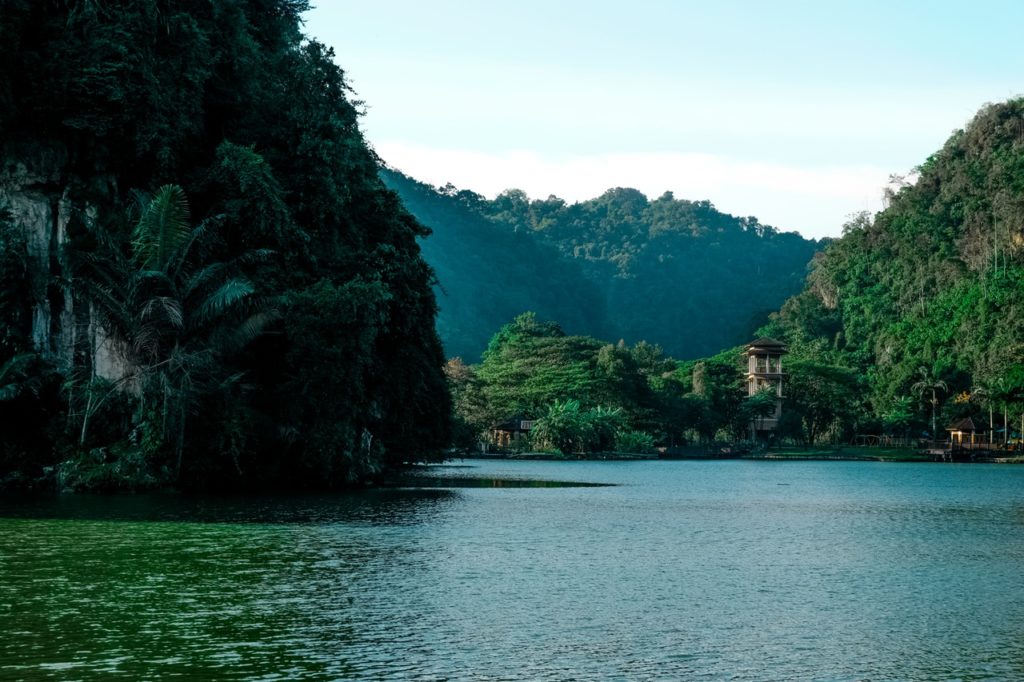
Show captions at the top of the image.


.rgg-imagegrid.captions-custom .rgg-caption {
    top: 0;
    bottom: auto;
}
Centred caption that fades out on hover
The image is darkened with the caption in the middle. On hover, the image clears and the caption grows and fades away.
.rgg-imagegrid.captions-custom .rgg-caption-container {
    background-color: rgba(0, 0, 0, .5);
    transition: background-color .5s ease;
}
.rgg-imagegrid.captions-custom .rgg-caption {
    bottom: 50%;
    transform: translateY(50%);
    background-color: transparent;
    font-size: 20px;
    transition: all .5s ease;
}
.rgg-imagegrid.captions-custom .rgg-img:hover .rgg-caption-container {
    background-color: transparent;
}
.rgg-imagegrid.captions-custom .rgg-img:hover .rgg-caption {
    transform: translateY(50%) scale(2);
    opacity: 0;
}
Caption that slides up on hover, on a gradient
The caption is hidden until you hover the image, then slides up on a fade-to-black gradient, left-aligned.
.rgg-imagegrid.captions-custom .rgg-caption {
    background: linear-gradient(transparent, rgba(0, 0, 0, .85));
    padding: 30px 12px 10px;
    font-size: 14px;
    text-align: left;
    transform: translateY(100%);
    transition: transform .3s ease;
}
.rgg-imagegrid.captions-custom .rgg-img:hover .rgg-caption {
    transform: none;
}
Good to know
- Version: Custom style needs RGG Pro 2.4.2 or later. Earlier versions hid the caption, whatever your CSS said.
- Images without a caption get no caption markup, so nothing shows on them.
- Captions effect and its in and out times don’t apply to Custom style: use CSS transitions, as in the examples. The image’s own hover effect (Bubble, Zoom or Fade, under Animation) still works.
- Touch screens have no hover. A caption that only appears on hover won’t be seen there.
- Lightbox: this setting only changes the grid. SimpleLightbox shows the caption in every caption mode. The WP default lightbox shows no captions.
- Captions under the image: use the Below the image option. To allow more than one line, set the number of lines with a CSS variable, for example
body { --rgg-caption-lines: 2; }.