The examples below require you to write some custom CSS. The best place to add custom CSS, is via your theme files, but if you want to quickly test you can also add CSS by adding a custom HTML block, or via Appearance > Customize > Additional CSS settings.
Preparation
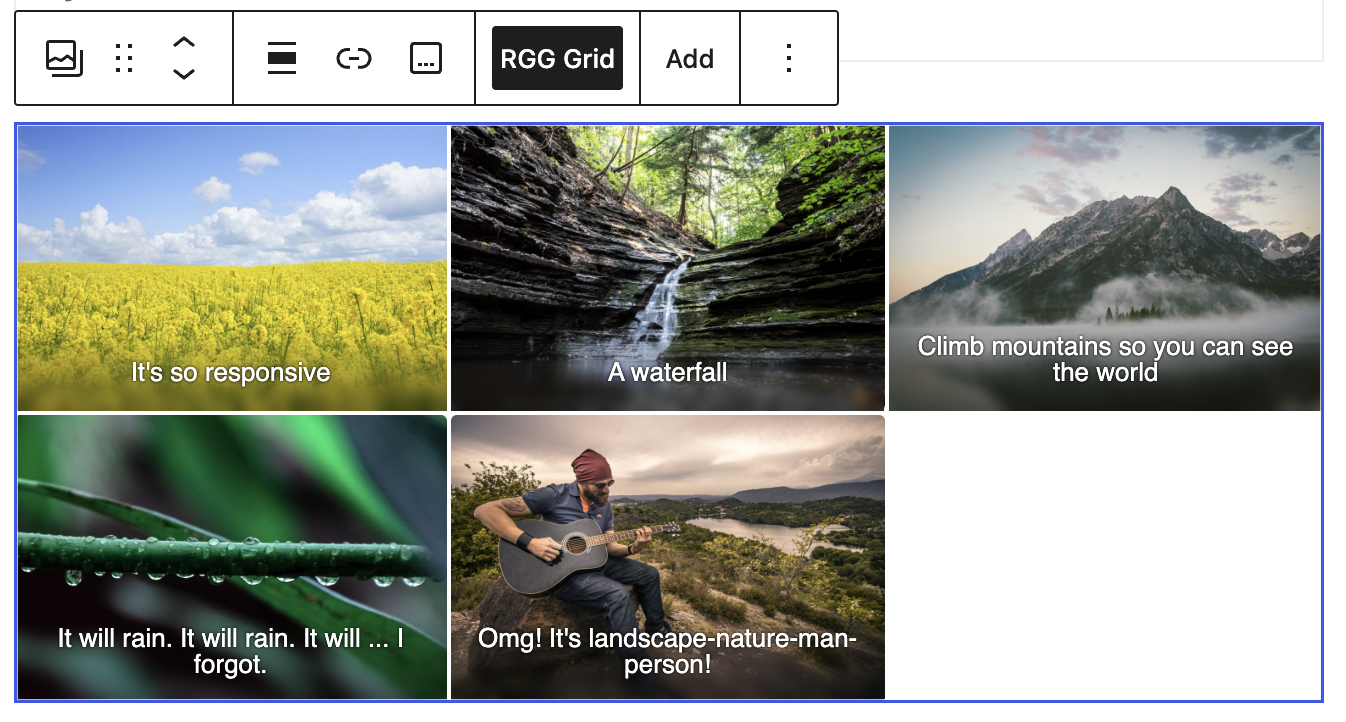
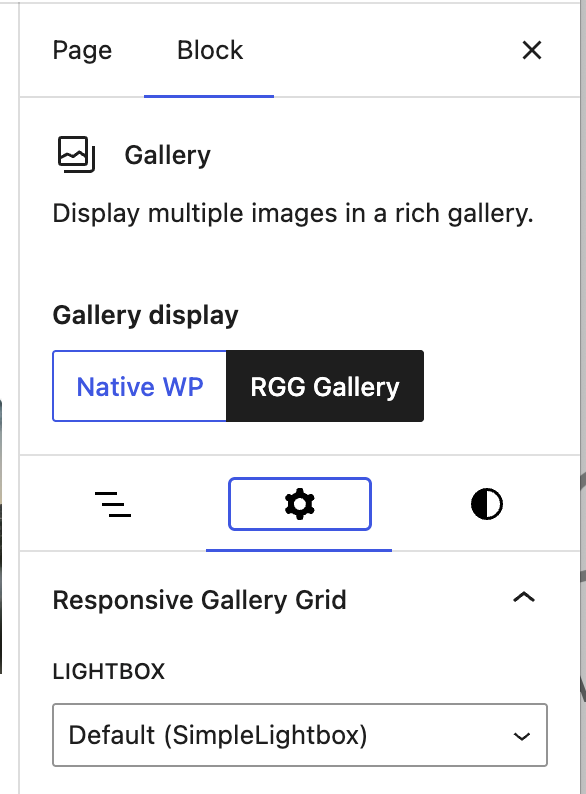
Before writing Custom CSS, you will need to give your gallery a specific class which you can target via CSS:

Example 1
Select Gallery and set CSS class to example-1, then add this CSS code:
.example-1 .rgg-img.rgg-in {
  filter: hue-rotate(90deg);
  transition: 1s filter linear, .5s -webkit-filter linear;
}

.example-1 .rgg-img.rgg-in .rgg-caption-container .rgg-caption {
  filter: hue-rotate(-90deg);
  background-color: indianred;
}




Example 2: full overlay captions
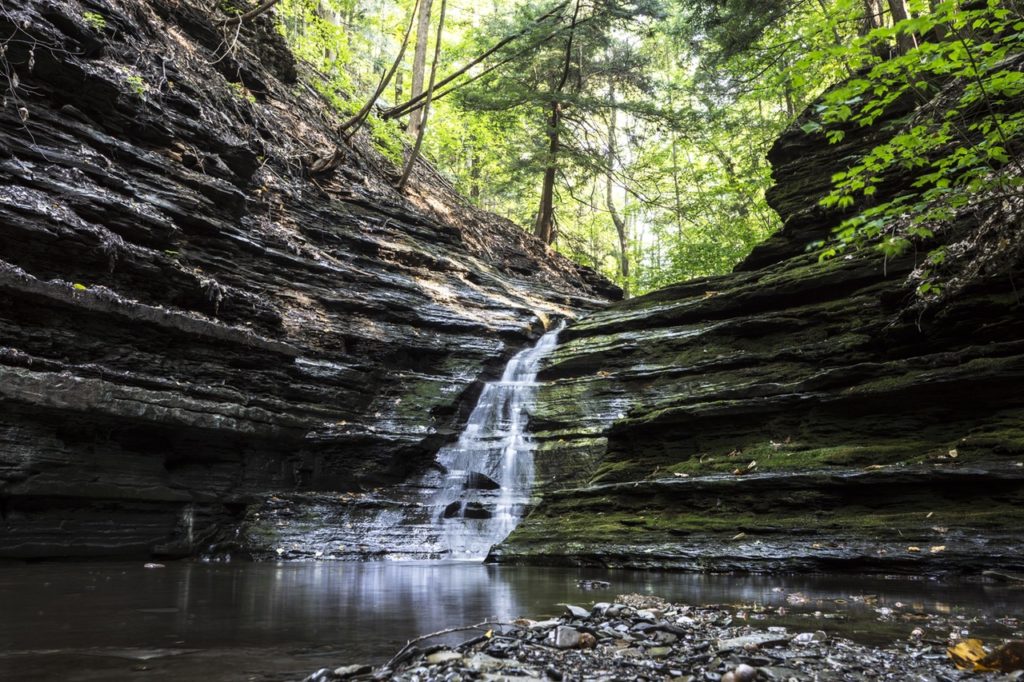
Select Gallery, choose Captions effect: fade and set CSS class to example-2, then add this CSS code:
.example-2 .rgg-img .rgg-caption-container .rgg-caption {
  display: flex;
  justify-content: center;
  align-items: center;
  height: 100%;
}